Room Planner Guide: Draw, Furnish and Walk Through Your Plan
The Room Planner is a free, browser-based design tool for drawing floor plans, furnishing rooms and checking the result in 3D. This guide follows the whole workflow, from the first wall to a walkthrough. All processing runs locally in your browser. Your data is not uploaded to any server. 100% Local
Quick start: the Room Planner interface
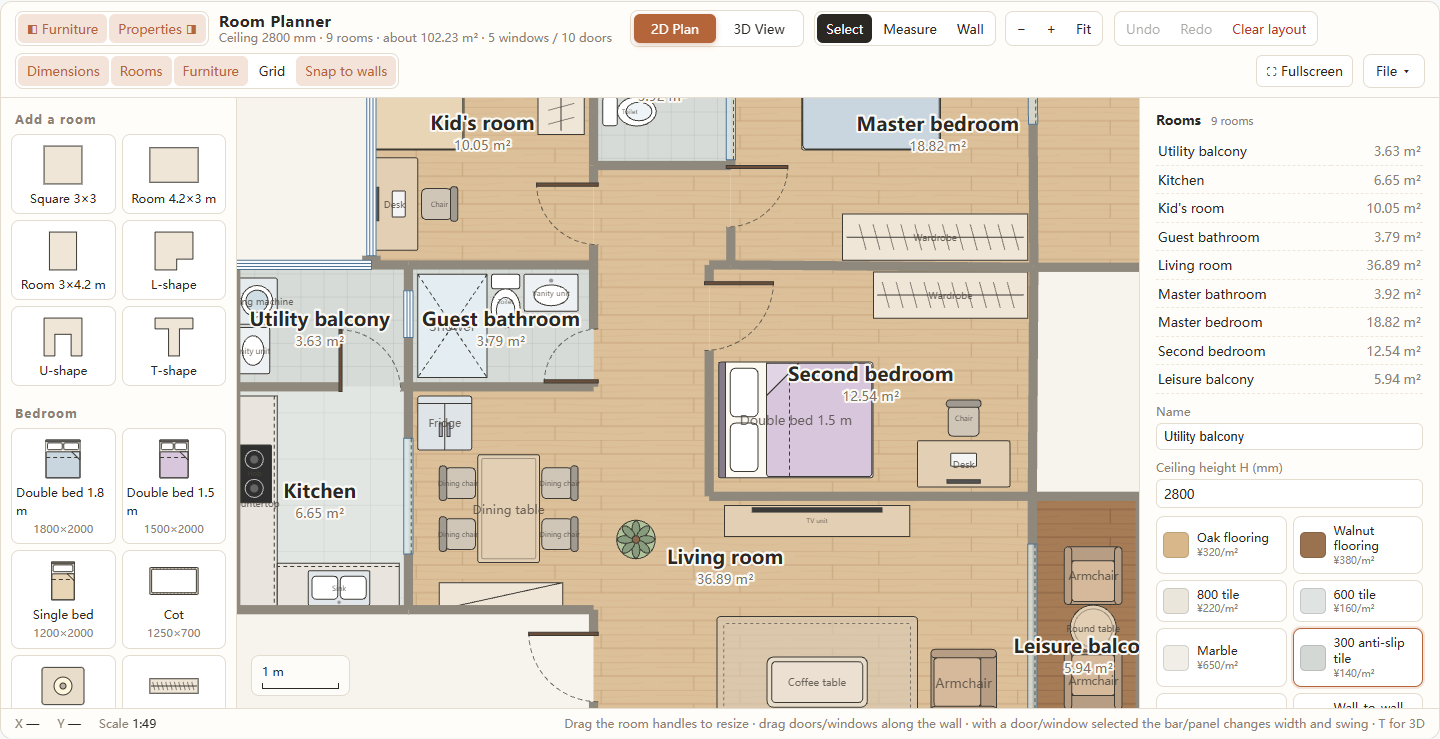
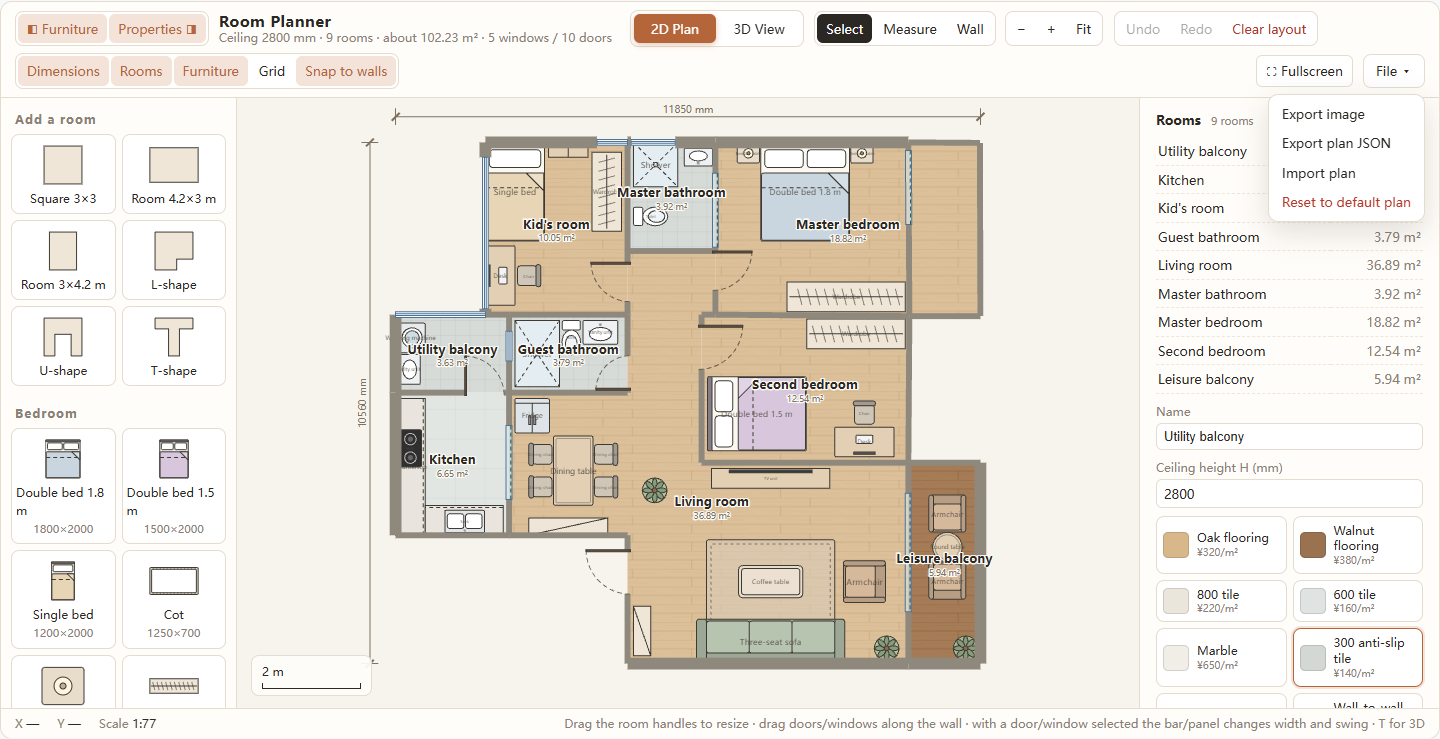
The workspace has three parts: the left panel holds furniture categories and Add a room templates, the centre is the 2D canvas, and the right panel lists rooms, doors, windows and furniture with the selected item's properties.
The top bar holds the 2D Plan / 3D View switch, Select, Measure and Wall tools, zoom controls, Undo / Redo, the layer row, Fullscreen and the File menu. The header reports ceiling height, room count, total floor area, windows and doors; the status bar shows the cursor position in millimetres and the current scale. Every dimension is in millimetres.
The default plan is a furnished example home, so you can try every control before starting your own. Edits auto-save to this browser's local storage, and 2D and 3D always share the same data. On narrow screens the side panels become drawers, opened with Furniture and Properties.
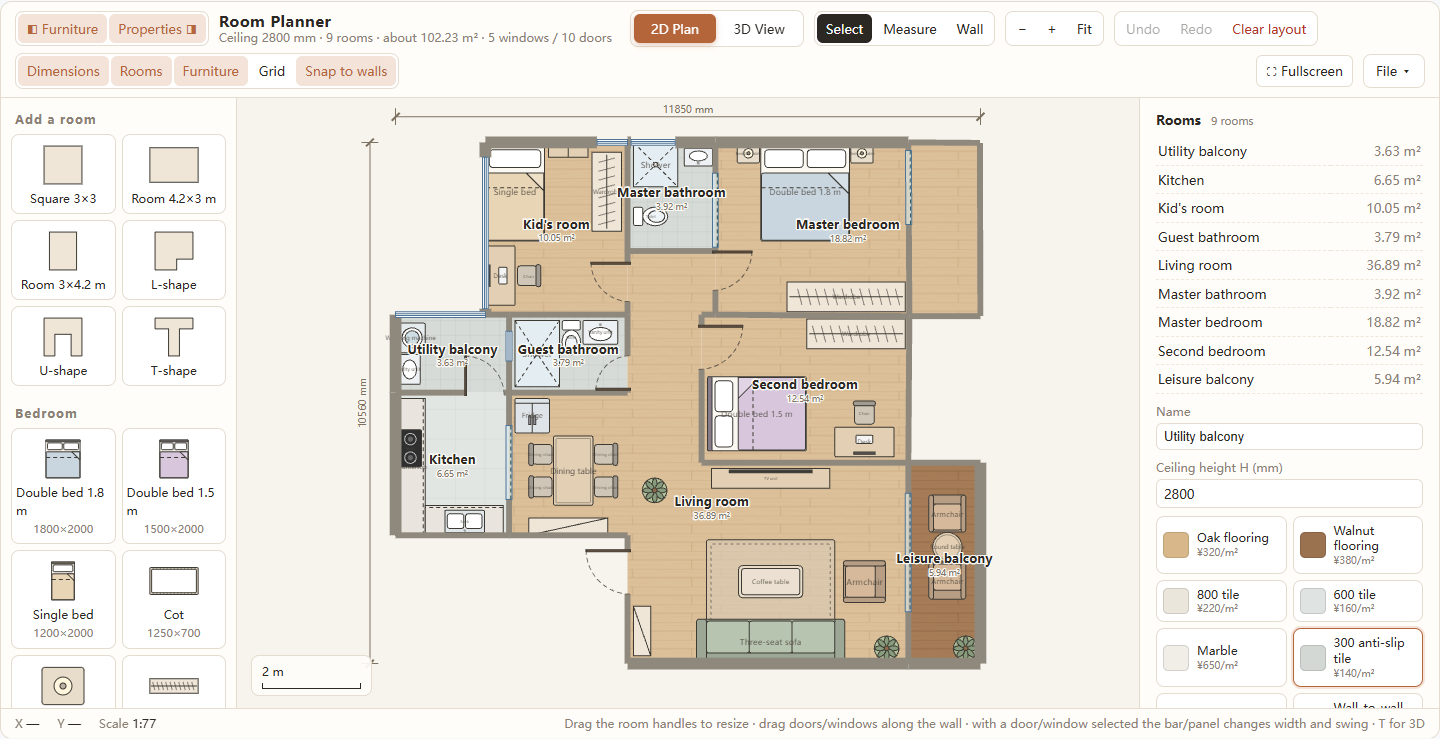
Draw the outer shell first, then internal partitions. A room appears the moment a loop of walls closes, so you can alternate between drawing and checking areas.
Draw walls and detect rooms
Draw a wall
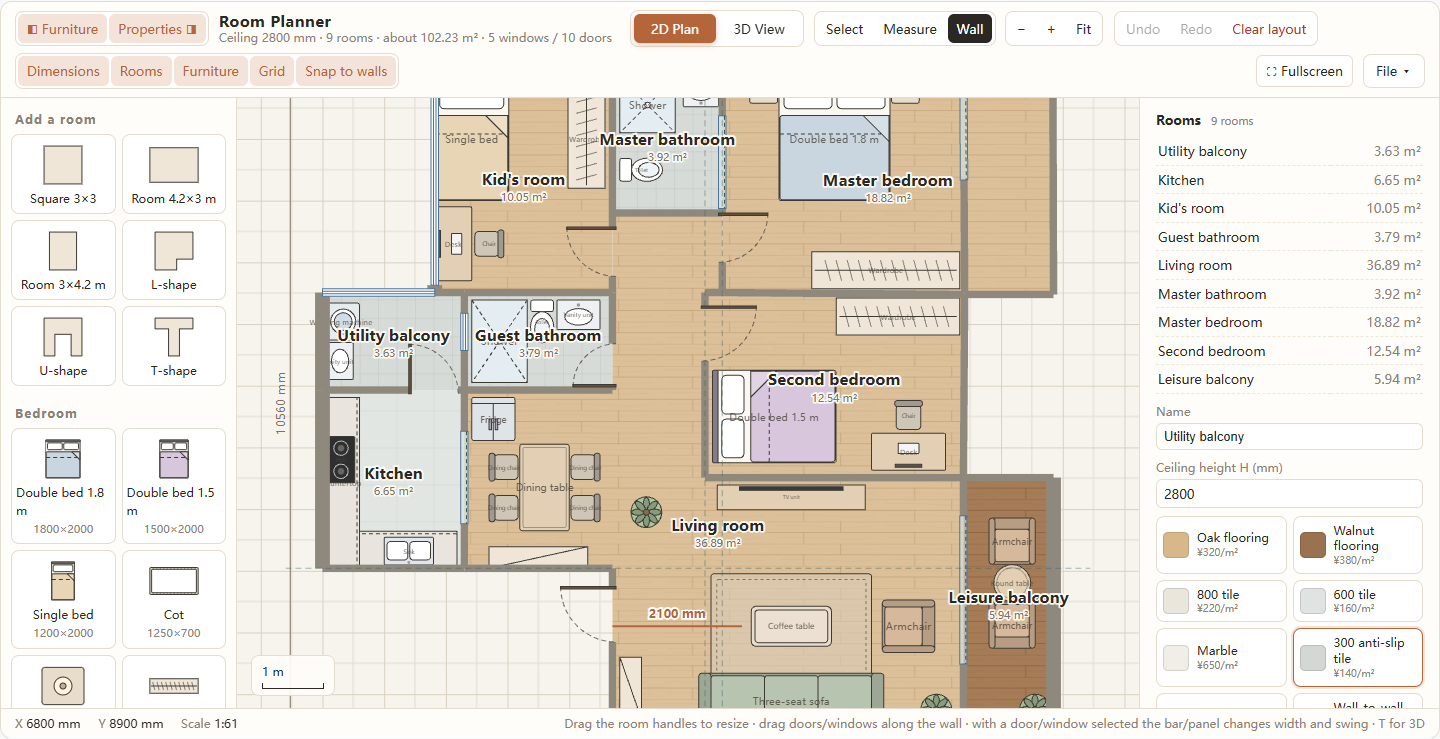
Select the Wall tool (W), press at the starting point, drag to the end point and release. Walls are drawn by dragging, not by clicking twice. A live preview follows the pointer and shows the current length; press Esc to cancel before releasing. The minimum wall length is 100 mm.
While you draw, the endpoint snaps to the 10 mm grid, existing wall endpoints and corners, and the body of another wall. Alignment guides appear when the new wall lines up with existing geometry. Dropping an endpoint on another wall splits it, which is how you close a loop or add a partition. New walls take the current ceiling height and a default thickness of 120 mm; both are editable afterwards.
Rooms are detected automatically
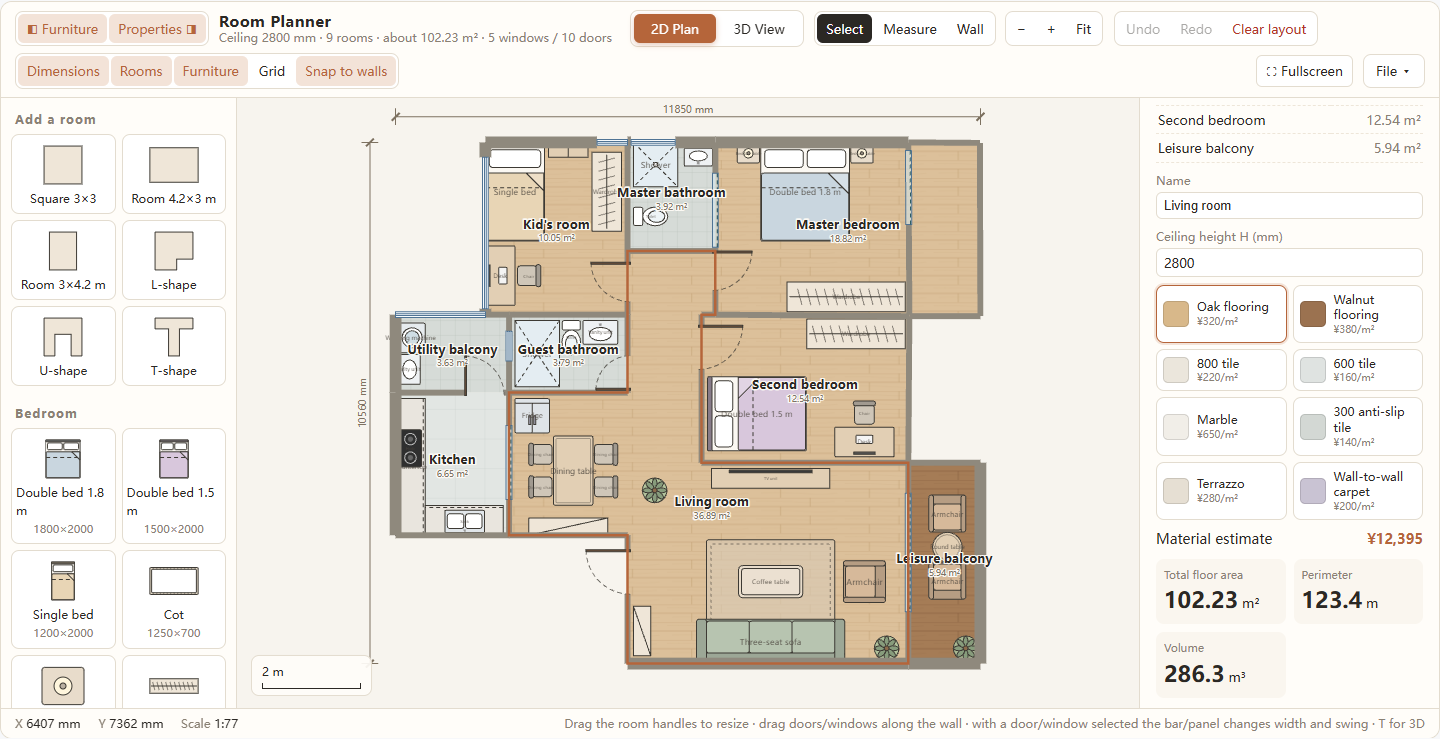
Any closed loop with an area above roughly 0.3 m² becomes a room. Select a room on the plan or click its row in the Rooms panel to edit it. Each room starts with a default name such as Room 1, which you can replace in the Name field. The Ceiling height field (2000–5000 mm) applies to every room in the plan.
Choose from eight floor materials: oak, walnut, 800 mm tile, 600 mm tile, marble, 300 mm anti-slip tile, terrazzo and wall-to-wall carpet. The panel lists each room with its area and totals floor area, perimeter and volume at the bottom. The selected room shows the material swatches and its floor area so you can budget materials yourself.
Resize rooms and edit walls
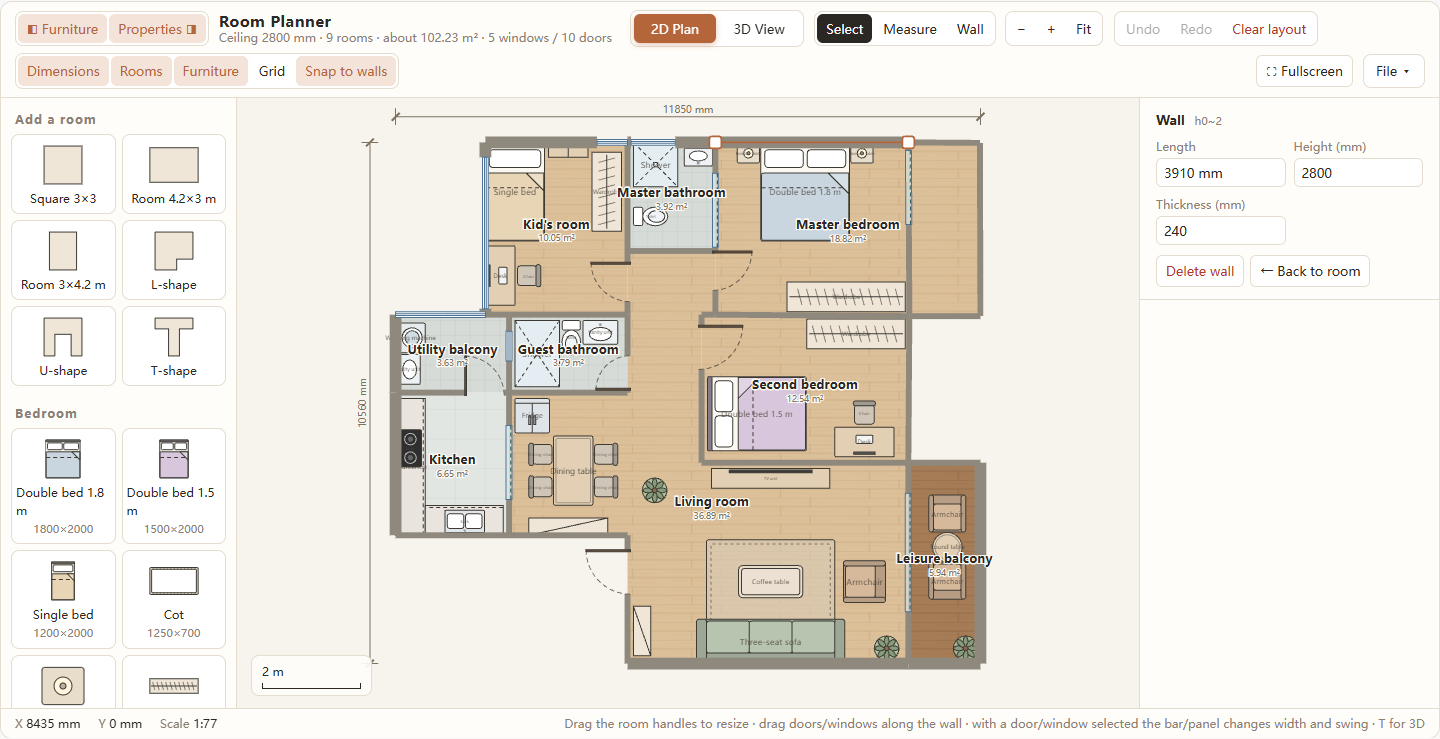
Switch to Select (V) and click a wall. Square handles appear at both ends. Drag a handle to move that endpoint; connected endpoints move with it, so adjoining walls and rooms reshape together. Dropping an endpoint on another wall splits it and can close a new loop. The wall panel shows a read-only length and lets you set Height (100–5000 mm) and Thickness (40–600 mm).
Delete wall removes the selected segment. Doors and windows on that wall are reattached to the nearest remaining wall rather than deleted. Press Esc or Back to room to clear the selection. Snapping works in screen pixels, so zoom in when you need finer control over an endpoint.
Add a room from a template
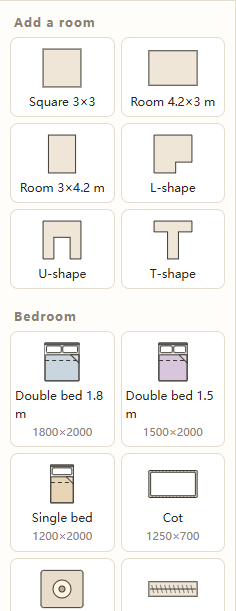
The Add a room section at the top of the library offers six wall outlines: Square 3×3, Room 4.2×3 m, Room 3×4.2 m, L-shape, U-shape and T-shape. The L, U and T shapes fit inside a 4.2 × 4.2 m envelope. Click a template to add it near the centre of the current plan, or drag it into position; while dragging, the outline snaps to nearby walls and guides within about 250 mm, and R rotates it in 90° steps.
A template is just ordinary walls, not a locked object: merge it with existing walls, resize or delete segments with the same tools. It is the quickest way to add a standard bedroom or bathroom to an existing shell.
Add doors and windows
Doors
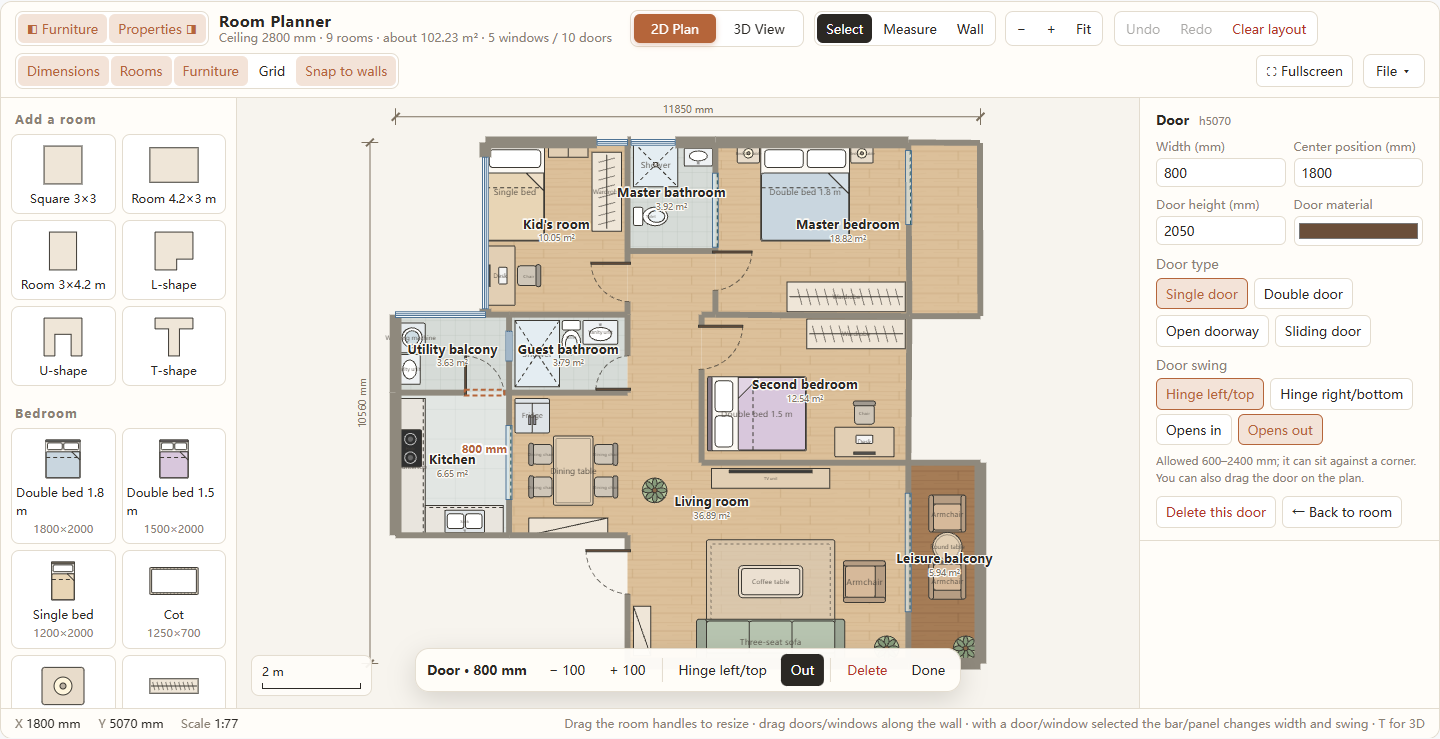
The Doors & windows category contains four door types in five presets: single doors at 800 mm and 900 mm, a 1500 mm double door, a 900 mm open doorway and a 1500 mm sliding door. Drag a preset onto a wall, or click it to place it on the nearest wall. A door cannot be dropped in open space.
A selected door can be 600–2400 mm wide and 1000–3000 mm high, with a material colour. Single and double doors also have a hinge side (left/top or right/bottom) and swing direction (in or out); open doorways and sliding doors have no swing controls. Drag a door along its wall to move it; the centre position is measured from the start of the wall, and a door can sit against a corner.
The action bar offers ±100 mm width steps, hinge and swing toggles, Delete and Done; on narrow screens an Exact button opens the full numeric panel. Width changes keep the door inside the wall.
Open doors in 3D
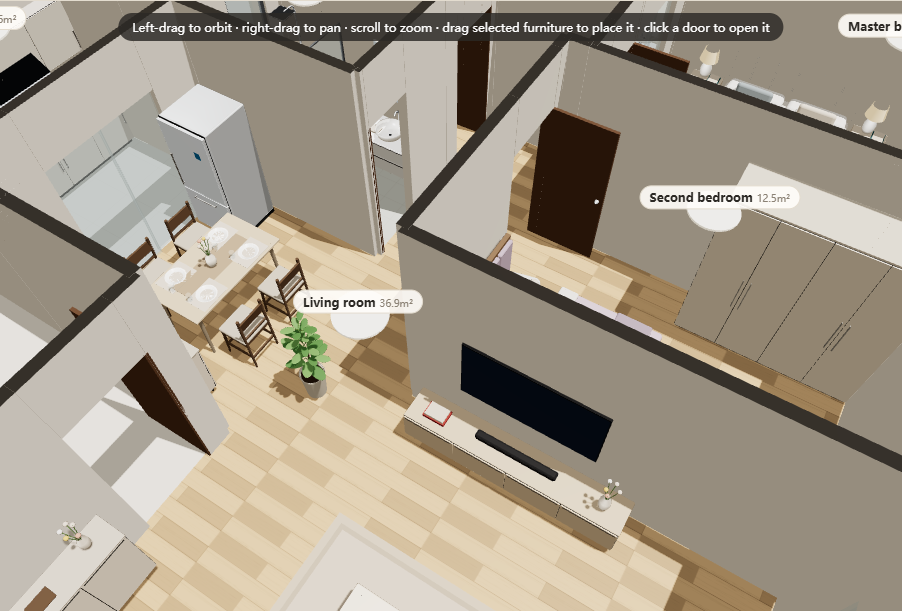
Switch to 3D View and click a door leaf to swing it open or closed. The hinge and in/out settings from 2D are respected, so the 3D result matches the plan. In Walk mode, press E to operate the door ahead of you within 2.5 m; on a touch screen, tap a door within 3.5 m.
Windows
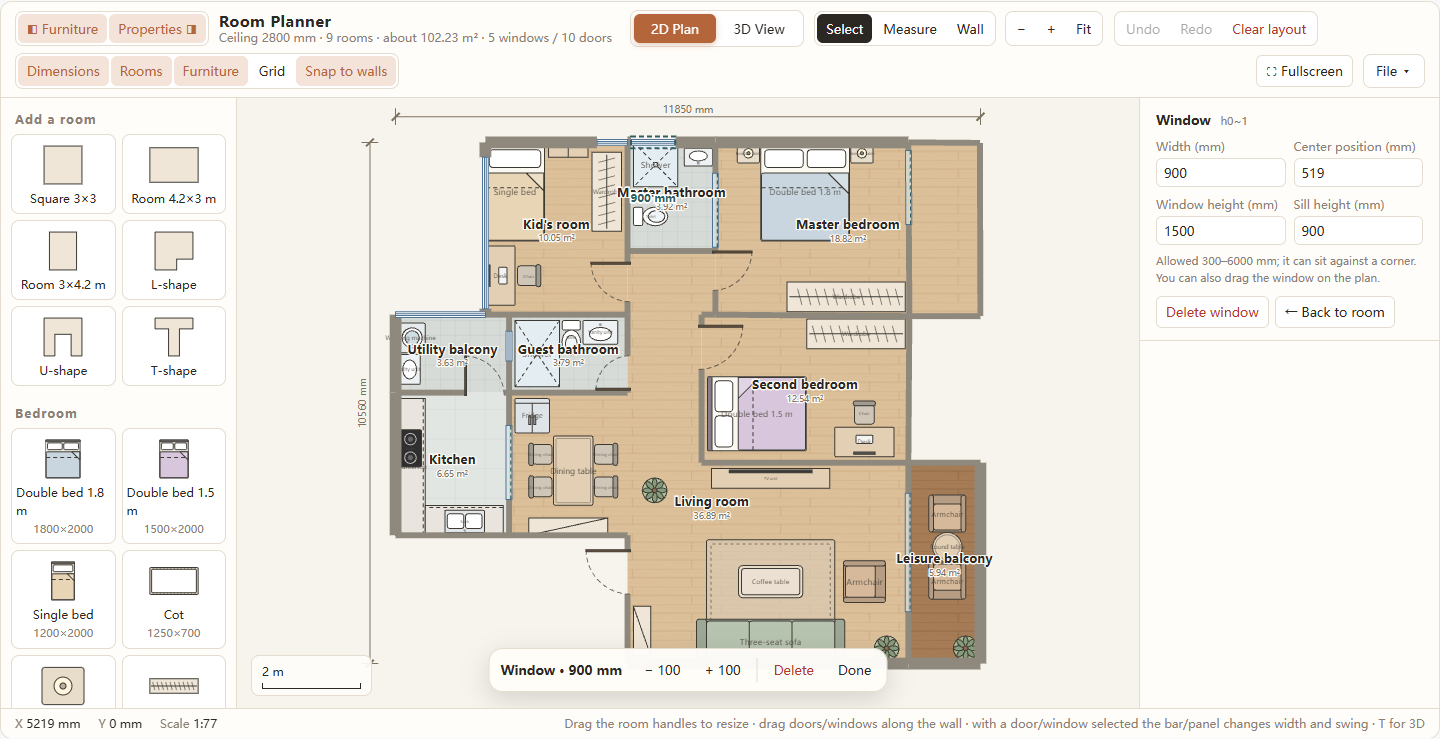
Window presets are 900, 1200 and 1800 mm wide. Place one on a wall in the same way as a door, then set its width (300–6000 mm), window height (300–3000 mm) and sill height (0–2000 mm, limited by the ceiling). The position value is the distance from the opening centre to the start of the wall (from the left on north/south walls, from the top on east/west walls). A window can sit against a corner. If the wall is too short for the opening and its margins, the planner refuses the placement.
Windows cut real openings and appear in 3D. The same bottom bar steps width by 100 mm, opens exact fields on mobile, deletes the window or finishes editing.
Furnish the room
Browse and place furniture
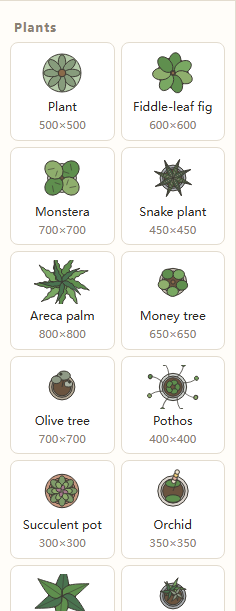
Eight categories — Bedroom, Living room, Kitchen, Bathroom, Appliances, Study & leisure, Plants and Doors & windows — hold 72 draggable entries, each at real size with its footprint printed under the name. The Plants category alone adds 13 greenery options, from a fiddle-leaf fig and monstera to a mixed planter. Click an item to add it at the view centre, or drag it onto the 2D plan or 3D floor.
New furniture is pushed out of walls and window openings, but it may overlap other furniture, so you can place a chair partly under a table. Rugs are inserted at the back of the stack, which keeps them under everything else.
Move, resize, rotate and recolour
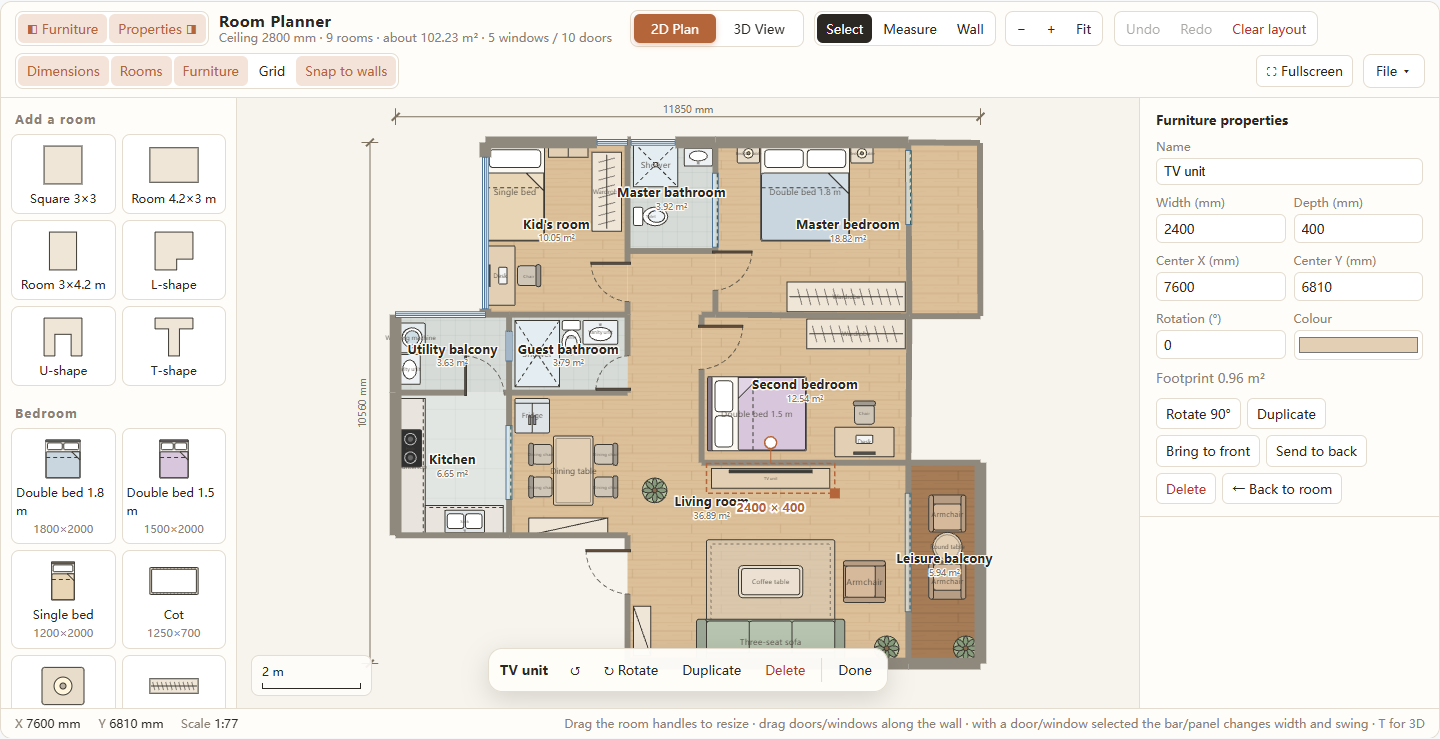
Click an item to select it. The bottom action bar has rotate buttons, Duplicate, Delete and Properties/Done, which open and close the property panel. The panel edits name, width, depth, centre X and Y, rotation and colour, and reports the footprint in square metres; Bring to front and Send to back control drawing order.
Drag the square lower-right handle to resize, and the round handle above the item to rotate in 15° steps (hold Shift for free rotation). Double-click rotates 90°. Arrow keys nudge by 10 mm, or 100 mm with Shift; R or Shift+R rotates 90° either way.
Snap furniture to walls
Snap to walls is on by default. While you drag furniture in 2D, its edges snap to wall and window edges within a small screen tolerance, so a wardrobe or sofa can sit flush against a wall. The 10 mm grid is always applied to furniture positions, whether or not wall snapping is on. The switch affects 2D dragging only; in 3D, furniture is placed by eye on the floor.
Measure distances
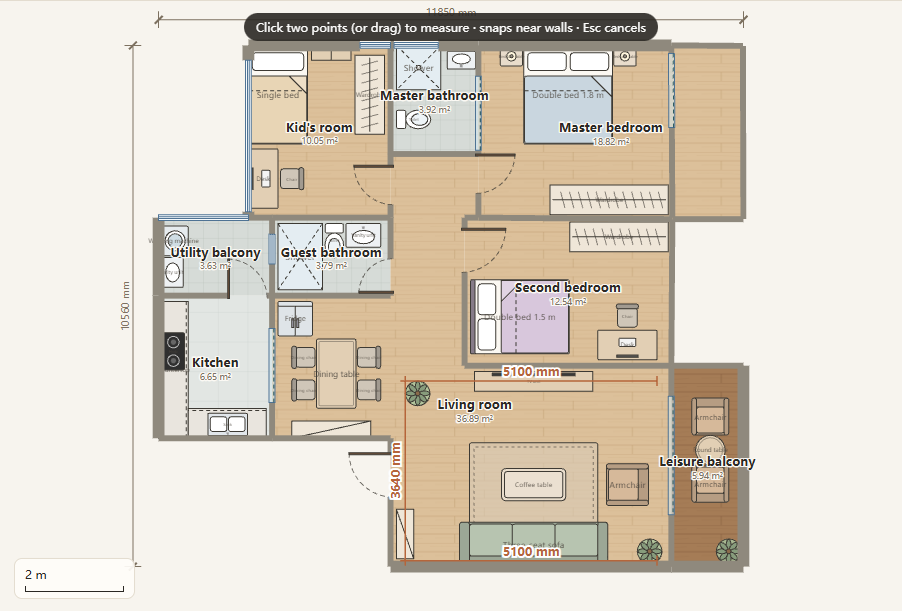
Choose Measure (M) and either click two points or press and drag between them. Measurements snap to wall and window edges as well as the 10 mm grid, and the live length is drawn on the plan. Hold Shift to lock the line horizontally or vertically from the first point. Press Esc or right-click to cancel the measurement in progress; finished measurements are orange and stay on the plan.
Measurements are independent of room dimensions and remain until removed; clear them all with Clear measurements (n) in the Rooms panel. Check doorway clearance, furniture gaps or a diagonal before ordering anything.
Layers, grid, zoom and fullscreen
Switch layers on and off
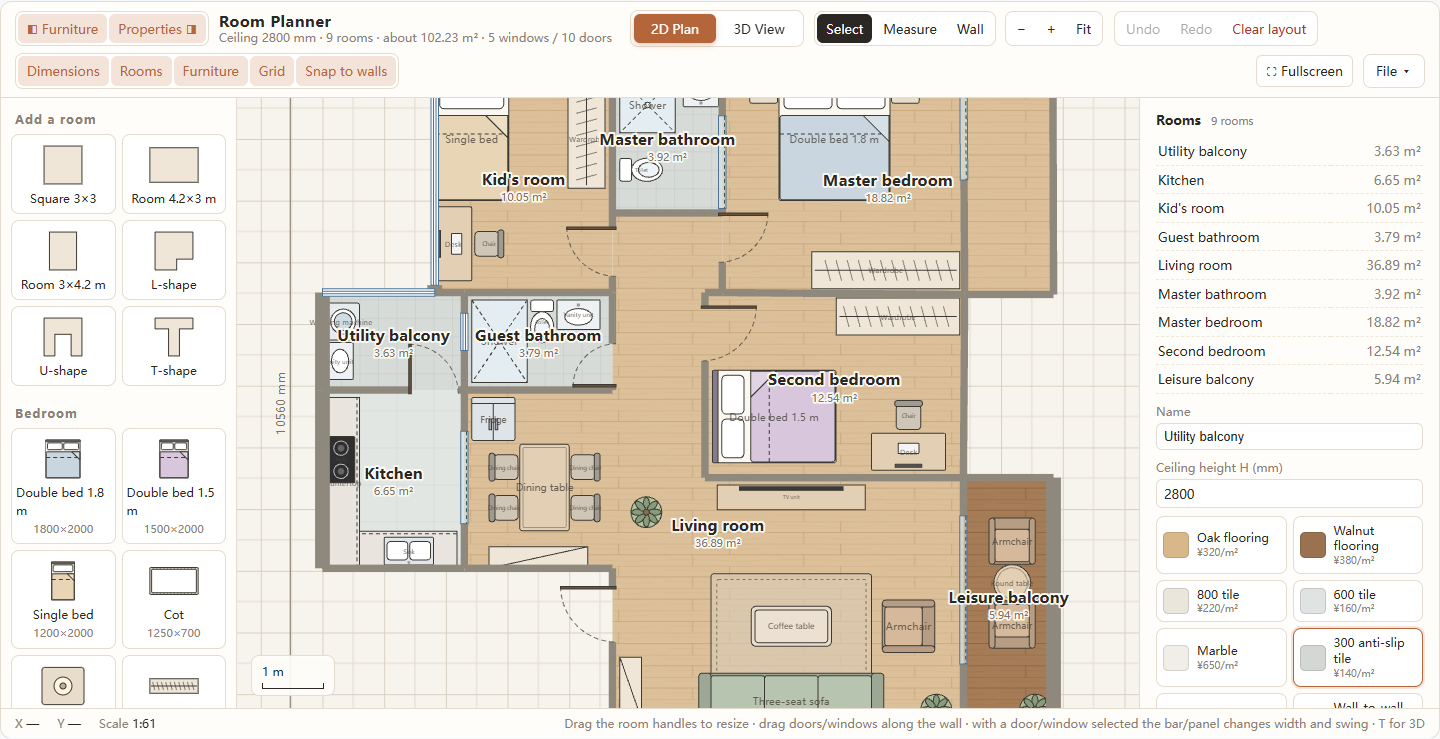
The layer row controls five items: Dimensions (overall width and depth), Rooms (names and areas), Furniture (2D symbols), Grid (half-metre lines inside one-metre squares) and Snap to walls (furniture-to-wall snapping). Dimensions, Rooms, Furniture and Snap to walls are on by default; Grid is off until you enable it.
These are 2D display layers only. They do not hide anything in 3D: the 3D toolbar has its own Furniture and Room names toggles. Hiding furniture in 2D, for example, leaves the 3D model unchanged.
Zoom, pan and go fullscreen
Use the − and + buttons, the mouse wheel, or Fit to frame the whole plan. The wheel zooms around the cursor; hold Ctrl while scrolling for faster zoom. On a touch screen, pinch with two fingers. With the Select tool, drag empty canvas to pan. The bottom bar shows cursor X/Y and the current scale (for example 1:49).
Fullscreen (Shift+F) enlarges the planner without changing the plan; Esc exits. On phones and small tablets the side panels become drawers, opened with Furniture, Properties, [ or ].
Explore the plan in 3D
Orbit, iso and top views
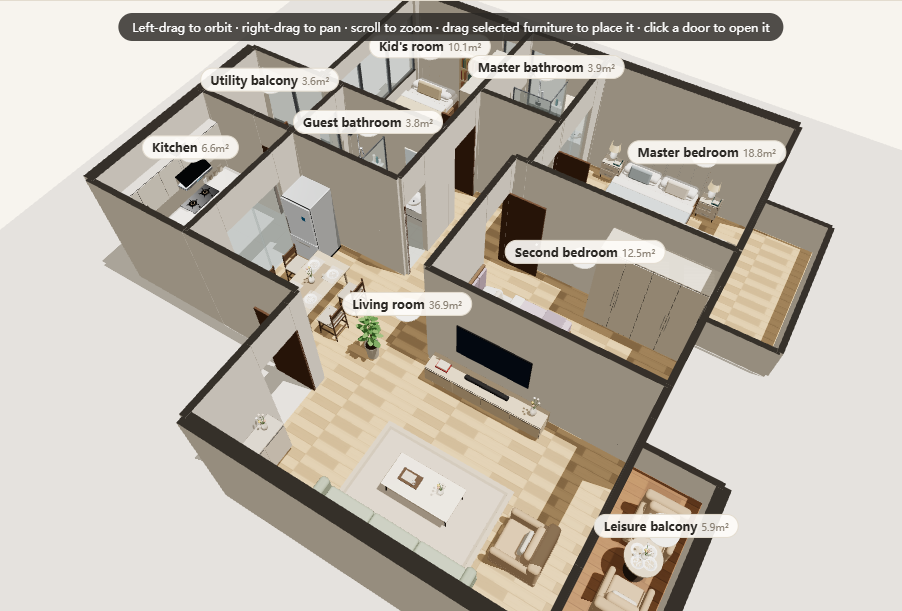
Press T or click 3D View. In Orbit, drag with the left mouse button to orbit, drag with the right button to pan, and scroll to zoom. Click a piece of furniture to select it, then drag it across the floor; click a door to open or close it. Iso gives an angled overview of the whole plan, and Top looks straight down. On touch screens, one finger orbits and two fingers zoom or pan.
Room list, cut walls and furniture visibility
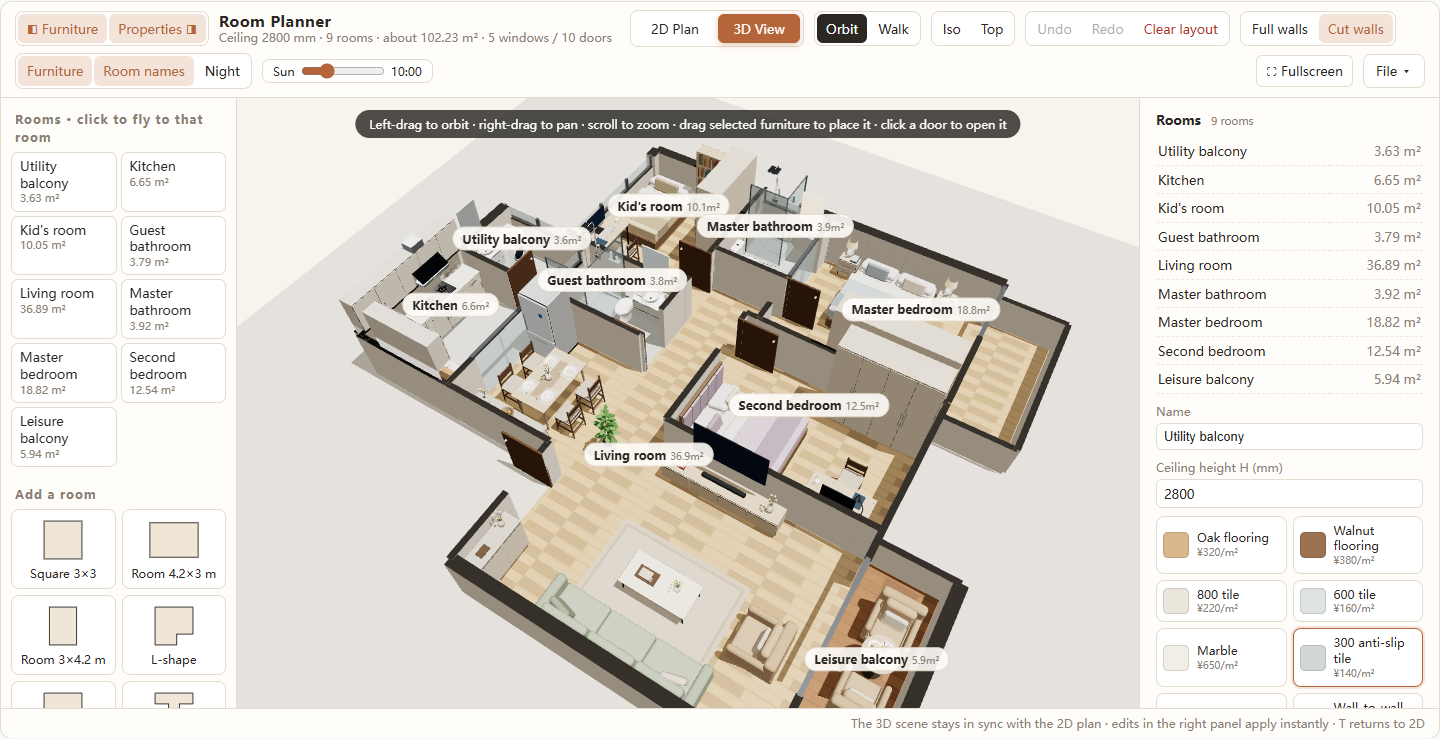
The 3D sidebar lists every room. Click a room to fly the camera to it. Full walls shows the model at ceiling height; Cut walls lowers the walls to 1.2 m so you can see into every room. The Furniture and Room names switches control the 3D scene independently of the 2D layers.
Walk mode always restores full-height walls, because cut walls would break the first-person view; entering Walk from Cut walls switches back automatically.
Sun and night view
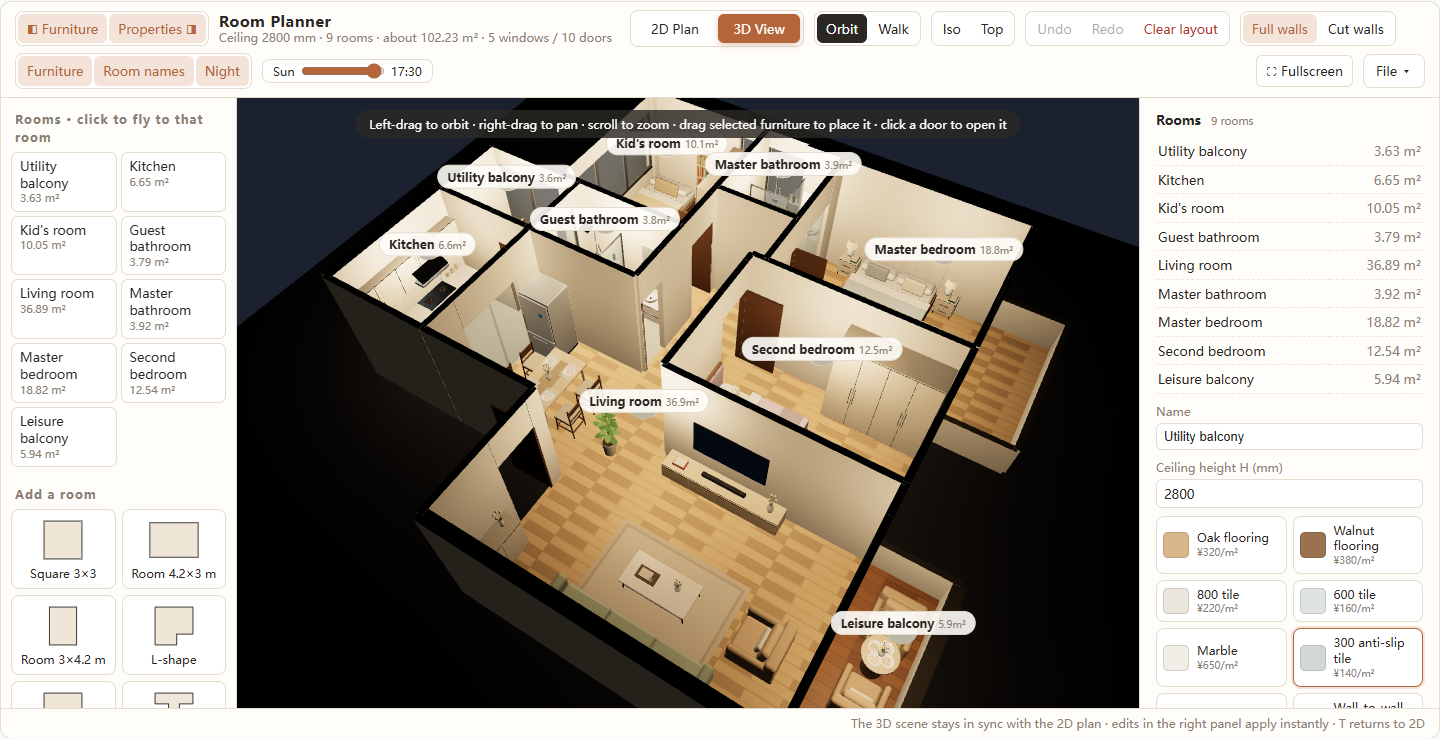
The Sun slider runs from 7:00 to 18:00 in 15-minute steps and changes the direction, warmth and strength of daylight. Night darkens the sky and switches on interior lights, useful for checking lamp positions after dark. Sun position and Night are viewing settings: not saved and not included in Undo.
Walk through the plan
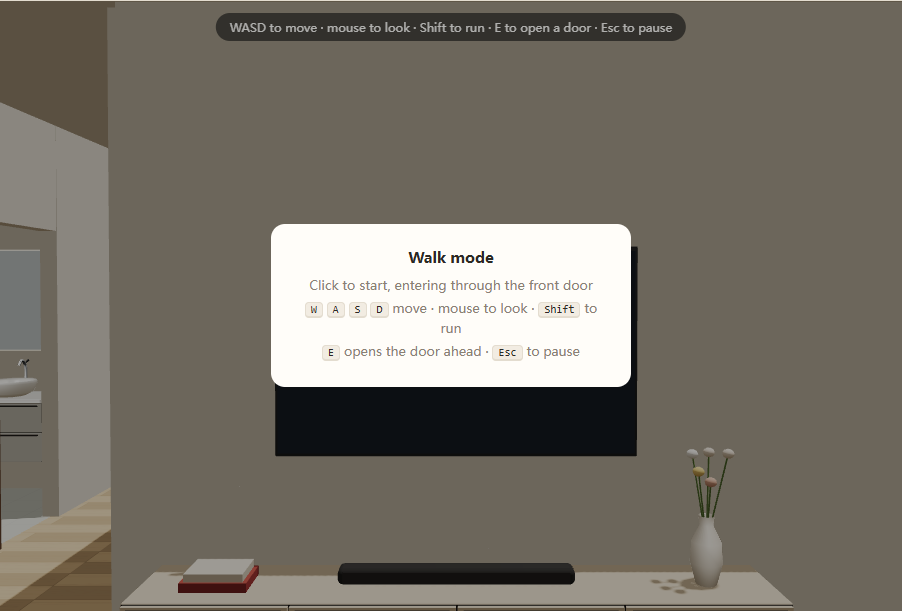
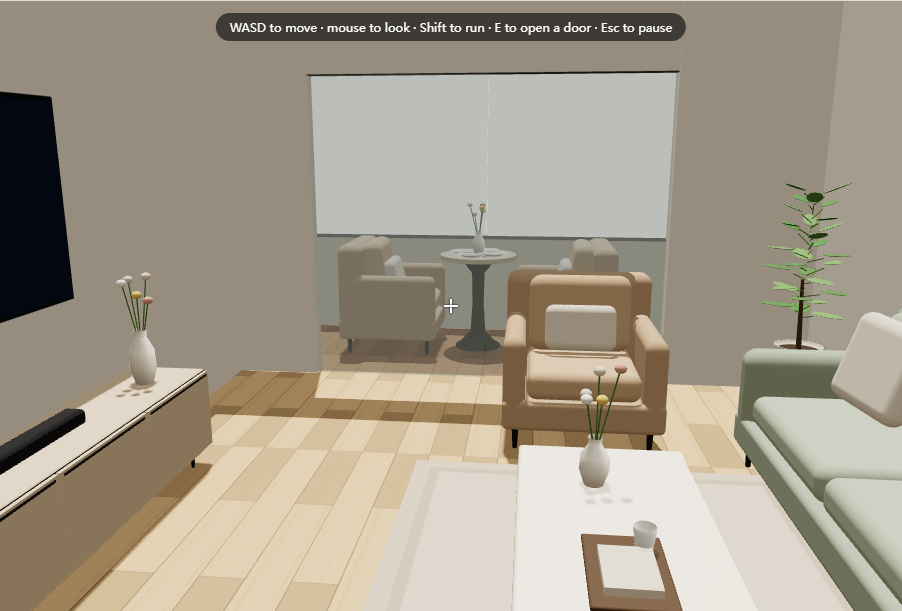
In 3D, click Walk to show the instructions overlay. Click once to start: the pointer is locked, the camera drops to eye height at the front of the plan and you can move through the rooms. On a touch device, tap the overlay to start with the on-screen joystick instead.
On a desktop, use W, A, S, D or the arrow keys to move, the mouse to look around, and Shift to run. Press E to open the door ahead within 2.5 m. Esc pauses and releases the pointer. On a touch screen, use the left joystick to move, drag the view to look around, and tap a door within 3.5 m to open it. Exit walk returns to Orbit.
Save, export and import
Open the File menu for the document actions. Export image behaves according to the current view: in 2D it exports the entire plan as a PNG 3200 pixels wide, including the layers you have switched on; in 3D it exports the current rendered frame. Export plan JSON downloads the complete plan, including walls, rooms, openings, furniture and measurements.
Import plan opens a file picker. The file must be valid JSON containing a furniture or wallSegs array. A successful import fits the plan to the window and can be undone; an invalid file shows “The file format is not valid.”
Reset to default plan asks for confirmation and replaces everything with the example home; it can be undone. Clear layout, in the toolbar and the Rooms panel, removes furniture only; walls, doors, windows and measurements stay. It needs a second click within 2.5 seconds and can be undone.
Undo and Redo keep up to 150 steps. Zoom, pan, camera position, sun settings and open/closed doors in 3D are not part of the undo history. Clearing browser site data erases the auto-saved plan, so export a JSON backup first.
Keyboard shortcuts
Shortcuts are ignored while the cursor is in a text or number field, so you can type dimensions safely. The Rooms panel also lists the main shortcuts for quick reference.
| Action | Shortcut | Scope |
|---|---|---|
| Undo | Ctrl+Z | General |
| Redo | Ctrl+Shift+Z or Ctrl+Y | General |
| Duplicate selected furniture | Ctrl+D | 2D |
| Open Furniture / Properties drawer | [ / ] | General |
| Toggle fullscreen | Shift+F | General |
| Toggle 2D / 3D | T | General |
| Select / move | V | 2D |
| Measure | M | 2D |
| Wall tool | W | 2D |
| Fit plan to window | F | 2D |
| Rotate 90° clockwise | R | 2D |
| Rotate 90° anticlockwise | Shift+R | 2D |
| Delete selection | Delete or Backspace | 2D |
| Nudge furniture 10 mm | Arrow keys | 2D |
| Nudge furniture 100 mm | Shift+arrow keys | 2D |
| Zoom in | + or = | 2D |
| Zoom out | − | 2D |
| Cancel measurement or return to Select | Esc | General |
Frequently Asked Questions
Is the Room Planner free?
Yes. It is free, with no account, subscription or watermark. Open the page and start drawing; the plan is stored in your browser.
Does it upload my plan?
No. All processing runs locally, and the plan is saved to this browser's local storage. Nothing is sent to a server. For a portable backup, use Export plan JSON and keep the file somewhere safe.
Can I draw more than one room?
Yes, there is no fixed limit. Every closed loop above roughly 0.3 m² becomes a separate room, so a whole apartment can be drawn as one set of walls.
Can I use feet and inches?
The interface works in millimetres, and there is no one-click imperial switch. Convert measurements before typing: 1 inch is 25.4 mm and 1 foot is 304.8 mm. Keeping one unit throughout avoids rounding mistakes when you check totals.
Does it work on a phone?
Yes. The layout is responsive: the furniture and properties panels become drawers, the canvas supports pinch zoom and one-finger panning, and Walk mode provides a touch joystick, drag-to-look and tap-to-open doors. A larger screen is still more comfortable for detailed drawing.
Can I open the plan later?
On the same browser, yes — the plan reloads automatically. Local storage is tied to one browser and device, so export the plan as JSON to continue elsewhere or guard against cleared site data.
Design aid only. The Room Planner does not replace professional architectural, structural, electrical or safety advice, and it does not check building regulations. Verify all dimensions on site before ordering materials or building, and treat floor areas as measured planning figures.